Use this short guide to read the information you already have. Finish with a worked weekly review, not another target number to chase.
What you will learn
Separate a zone label from a heart-rate reading, find the relevant Apple Watch views, and read a completed example without confusing missing data with zero.
What you can take away
Six illustrated pages, two standalone diagrams and three exercises with answers. Read everything online or keep the PDF for personal learning.
Before you begin
No watch or health-data upload is needed. The workout records are fictional teaching examples. This guide explains information; it does not prescribe a training schedule or set an individual heart-rate target.
Original teaching example; no personal records or recommended training targets.
02 / MAKE THE DISTINCTION
A label has a method behind it
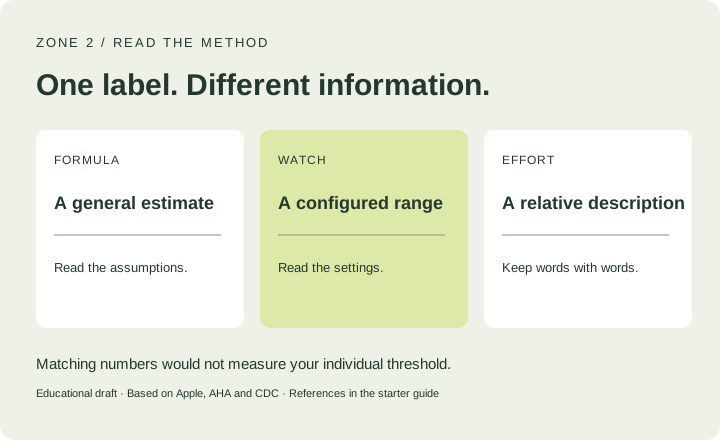
A formula, a device label and your description of effort answer different questions.
FORMULA
A general estimate
Read the assumptions.
WATCH
A configured range
Read the settings.
EFFORT
A relative description
Keep words with words.
Matching numbers would not measure your individual threshold.
Educational draft · Based on Apple, AHA and CDC · References in the starter guide
An age-based heart-rate estimate is general guidance based on averages. It is not a measurement of your individual threshold.
A configured zone
Apple Watch uses health data for automatic zones and also offers manual settings. A displayed zone therefore needs the context of its settings.
A description of effort
The talk test is a broad clue to relative intensity. It does not verify the exact boundary of a particular five-zone model.
Worked example
A calculator and a watch show different ranges. First compare the stated method and settings. Making the two displays match would not prove either range is your individual threshold.
Navigation below follows Apple documentation for watchOS 26. Other versions may differ; this is not a hands-on device test.
During a workout
Start a cardio workout in Workout, then turn the Digital Crown to find Heart Rate Zones. Apple lists a date of birth in the iPhone Health app as a prerequisite for zone calculation.
After a workout
On iPhone, open Fitness, select a workout in Sessions, then choose Show More next to Heart Rate to inspect the zone breakdown.
Inspect the existing settings
On the watch, open Settings > Workout > Heart Rate Zones. Note whether zones are automatic or manual. Do not change the setting merely to match a calculator.
If the view is missing
Use our Apple Watch check tool for the version-specific view checks. For another watchOS version, select that version in Apple’s guide before following its steps.
Fictional 40-minute session: 8 minutes in Zone 1, 14 in Zone 2, 6 in Zone 3 and 2 in Zone 4; 10 minutes unclassified.
The total you can report
The classified time adds up to 30 minutes. Zone 2 contributes 14 minutes in this example’s chosen model. Neither number replaces the 40-minute session duration.
The part you cannot infer
The remaining 10 minutes have no classification in this teaching record. Keep them separate. Do not add them to Zone 2 or treat them as time in Zone 1.
A finished review note
“40 minutes recorded; 14 minutes labelled Zone 2; 10 minutes unclassified. Check source coverage before comparing this record with a fully classified session.”
What this does not establish
Time in a labelled zone alone does not establish health improvement or explain symptoms. This exercise teaches careful arithmetic and description, not a judgement on the workout’s value.
Original teaching example; no personal records or recommended training targets.
05 / YOUR WEEK AT A GLANCE
Turn three sessions into one useful review
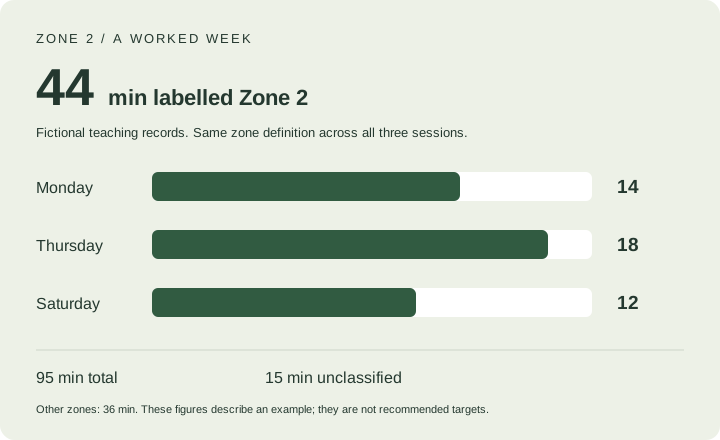
These three fictional records use the same zone definition. Monday: 40 minutes total / 14 Zone 2 / 10 unclassified. Thursday: 30 / 18 / 0. Saturday: 25 / 12 / 5.
YOUR WEEK, EXPLAINEDFictional example
44 min
labelled Zone 2 across 3 example sessions
Mon
14 min
Thu
18 min
Sat
12 min
95 min total15 min unclassified
A descriptive summary, not a target or a health score.
Fictional teaching records. Same zone definition across all three sessions.
95 minutes of sessions. 44 minutes labelled Zone 2. 15 minutes unclassified. The remaining 36 minutes belong to other zones in this example.
The next useful check
Before comparing with another week, check the same definition, included sessions and data coverage. A change in settings or missing records can change the comparison.
What an app could save you
A future app could collect existing sessions and prepare this summary automatically. The website demonstration uses this fixed example and reads none of your Apple Health data.
Original teaching example; no personal records or recommended training targets.
06 / PRACTICE + ANSWERS
Check your understanding
Try each question before reading the answer. You do not need to enter any personal measurements.
1. Two tools show different ranges. Which is right?
Answer: the mismatch alone does not tell you. Inspect the methods and current settings; neither has measured an individual threshold in this exercise.
2. A 40-minute session has 30 classified minutes. Add the rest to Zone 2?
Answer: no. Report 10 unclassified minutes separately. In the worked record, the known Zone 2 total remains 14 minutes.
3. Monday has 14, Thursday 18 and Saturday 12 Zone 2 minutes. What is the weekly total?
Answer: 44 minutes in the selected model, with 15 unclassified minutes recorded separately across the week. This is a descriptive total, not a recommended target.
Where to go next
Use the illustrated method guide for definitions, the Apple Watch check tool for device navigation, or the App preview to tell us which repeated task you want automated.